

Save time with our new Shopify file picker and prepare image translations for unpublished languages before your next store launch.
Managing product image translations in Shopify should be fast. Two new workflow improvements in the Translate Product Images app reduce the time spent on routine image translation tasks. One targets bulk operations: translating large batches of images across your catalogue without waiting. The other targets product updates: automatically detecting when you add or change a product image and queueing it for translation without manual intervention. Both changes are live now and active for all users of the Translate Product Images app.
TLDR: We’ve launched two major updates to streamline your workflow! You can now reuse existing Shopify files directly within the app (no more downloading and re-uploading) and prepare translations for unpublished languages. These features allow you to build a perfectly localized store behind the scenes before going live.
Expanding your store into new markets shouldn’t feel like a chore. Our goal has always been to make translating your visual content as seamless as possible.
Today, we’re excited to announce two major workflow improvements designed to save you time and give you more control over how you manage your store’s localized content. Whether you’re tired of the “download-upload” loop or want to perfect your store before the big reveal, these updates are for you. You can even check them off your international selling checklist.
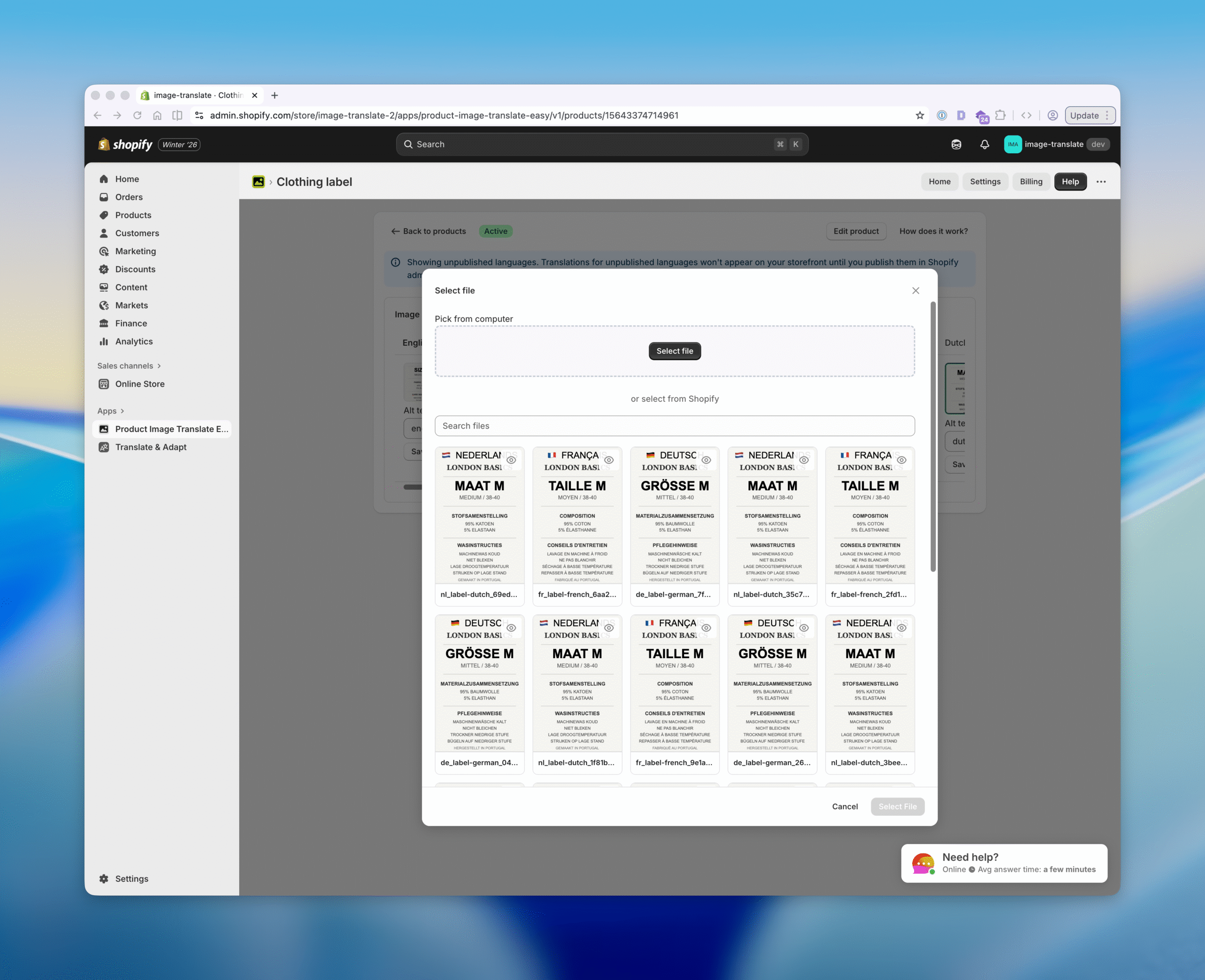
We know the drill: You’ve already painstakingly uploaded your product images to Shopify. Previously, if you wanted to translate an image, you often had to download it to your computer and then re-upload it to our app. It was tedious and, frankly, it just wasted your storage space.
We’ve introduced a new unified file picker that connects directly to your existing Shopify library. You no longer have to choose between “local” or “cloud”: it’s all in one place. This makes it easier than ever to show different product images for different languages.
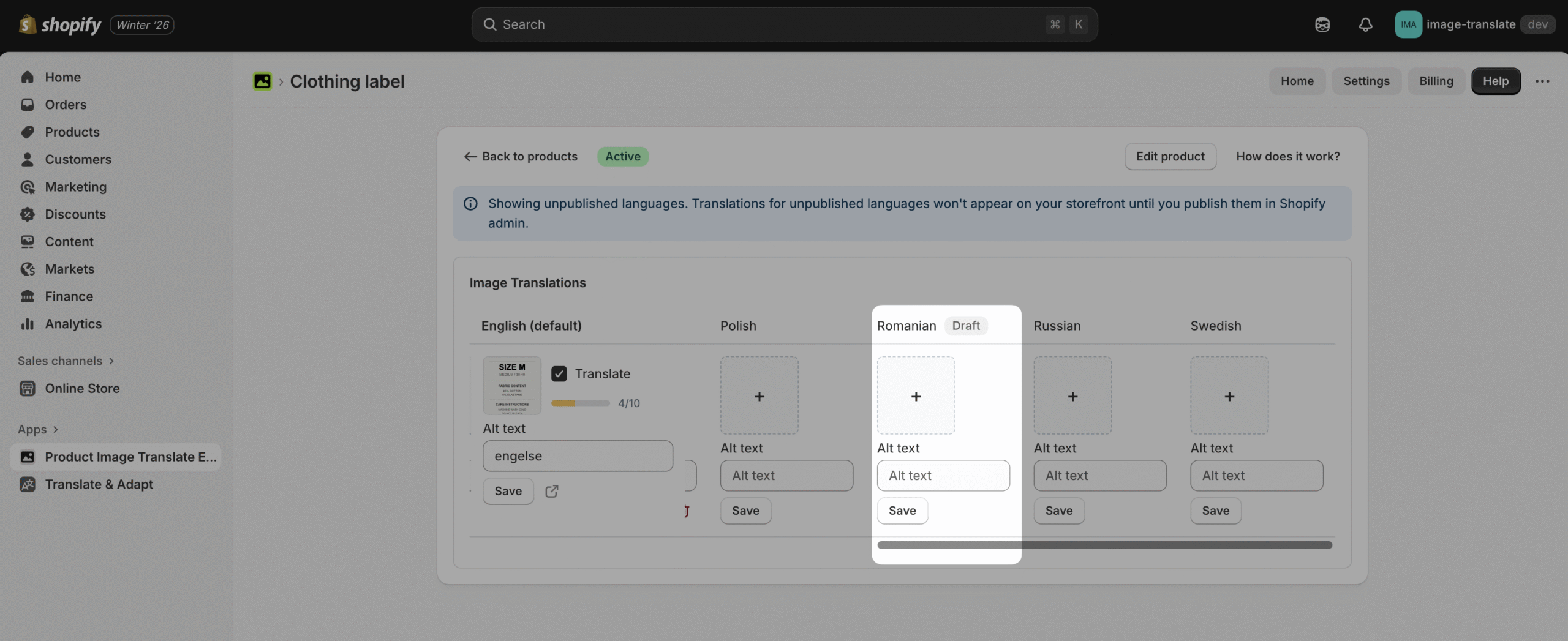
First impressions are everything. One of the biggest requests we’ve received is the ability to work on translations for a language before it goes live on the storefront. Previously, you could only edit languages that were already published, which often led to a “mad dash” to finish translations the moment you hit publish.
You can now work behind the scenes. We’ve added a toggle that lets you prepare every single image translation while a language is still in “Draft” mode in Shopify. This is essential for maintaining a professional look when localizing product labels and packaging images.
We aren’t stopping here! We are currently working on even faster ways to bulk-edit image text and improved AI-detection for complex backgrounds. This will be particularly helpful for managing product infographics across multiple markets.
Have feedback? We build these features based on your suggestions! If there is a workflow bottleneck slowing you down, let us know.
Log in to your Shopify dashboard and open Image Translate to see these improvements in action.
Need a hand?