
Every published book has an ISBN. That 13-digit number is the key to importing books into Shopify without retyping a single title, author, or description. This guide covers everything: how ISBN lookup works, what metadata you get, how to import one book or a thousand, and how to scan barcodes from your phone using Shopify POS. Whether you’re an independent bookstore, a used book dealer, or a publisher listing a backlist, this is the playbook.
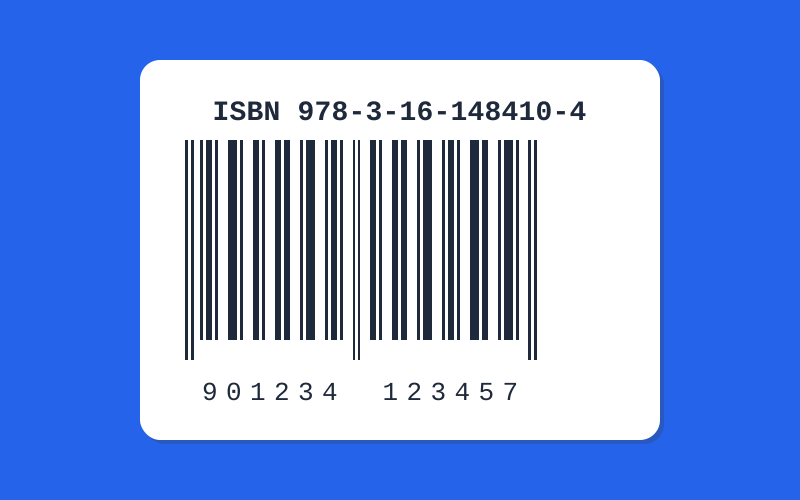
ISBN stands for International Standard Book Number. Every commercially published book gets one. It’s printed on the back cover as a barcode and listed on the copyright page.
An ISBN connects to professional book databases that store the book’s full metadata: title, subtitle, authors, publisher, description, cover image, page count, publication date, binding type, language, weight, and dimensions. Millions of records, maintained by publishers, libraries, and distributors worldwide.
ISBN-based import means using that number to pull all of this data automatically and create a Shopify product from it. Instead of typing every field by hand, you enter the ISBN and let the data come to you.
Shopify’s product editor treats books like any other product. It doesn’t know what an ISBN is. There’s no “fetch book data” button. You start with a blank form every time.
A proper book listing needs a title, author, description, cover image, publisher name, ISBN as barcode, and ISBN as SKU. Finding and entering all of that manually takes 5-10 minutes per book. For a catalog of 200 titles, that’s 16 to 33 hours of data entry. Most merchants cut corners partway through, ending up with listings missing covers, descriptions, and barcodes.
ISBN import compresses that to about 30 seconds per book. Complete data. Cover image included.
When you look up an ISBN, the Book Importer for Shopify searches multiple book databases and returns the best available data. Here’s what a typical lookup produces:
Not every book returns every field. Older or niche titles may have gaps. But because the app searches multiple databases and merges results, coverage is high. Far higher than what you’d get copying from a single source. For a detailed breakdown of every field and how each one maps to Shopify, see our dedicated guide.
The core workflow. Open the app in your Shopify admin, type or paste an ISBN, and click “Look up.” The app validates the number (checks format, verifies the checksum digit, converts ISBN-10 to ISBN-13) and fetches metadata.
You see an editable preview with every field filled in. Adjust anything you want: shorten the description, change the title, set a price. Then click “Create draft product.” The book appears in your Shopify catalog as a draft with cover image, barcode, and all metadata mapped to the right fields.
This is the fastest way to add individual books. We walk through every click in the step-by-step ISBN import guide.
Have a list of ISBNs from a distributor, a spreadsheet export, or your POS system? Paste them into the bulk import field (one per line) and start the batch. The app processes each ISBN in the background: looking up metadata, checking for duplicates, and creating products.
You can track progress in real time. Each ISBN shows its status: success, failed, or duplicate skipped. When the batch completes, you have a full report of what was imported and what needs attention.
Bulk import is available on the Professional and Plus plans. If you’re migrating an existing book inventory to Shopify, this is the fastest path.
Physical bookstores need to add inventory from behind the counter, not from a laptop in the back office. The Book Importer includes a POS Book Scanner tile that sits on your Shopify POS home screen.
Tap the tile, scan a book’s barcode with your phone camera or an external barcode scanner, review the metadata, and tap “Import Book.” The product is created in Shopify immediately. Duplicate detection works here too.
This is built for the real workflow: a box of new books arrives, staff scans each one at the register, and the products appear in the catalog without anyone touching a computer. We cover the full POS workflow in the POS Book Scanner guide.
When the app creates a product, every piece of metadata lands in the right Shopify field:
book_importer namespaceProducts are created as drafts. You review them in your Shopify admin and set them to active when ready. No accidental publishing of incomplete listings.
Importing the data is half the job. The other half is displaying it to customers. The app includes a theme app block that shows book-specific details (ISBN, authors, publisher, page count, language, binding) directly on your product pages.
You configure it from the Shopify theme editor: choose which fields to show, customize the labels, pick a layout (list, table, or rows), and adjust colors and spacing to match your theme. Everything works in English and Dutch. No code required. We cover the full setup in our guide on how to display book details on your Shopify product page.
This means your customers see professional, structured book information without you manually adding it to each product description.
Importing the same book twice is a common problem, especially during bulk operations or when multiple staff members add books throughout the day. The app prevents this by checking your existing Shopify products by ISBN-13 barcode and SKU before creating anything.
If the book already exists, you get a clear message with a link to the existing product. No duplicate created. No cleanup needed. This works the same way whether you’re importing one book at a time, running a bulk batch, or scanning from POS.
Books published before 2007 often show only an ISBN-10 (10 digits). Newer books use ISBN-13 (13 digits, starting with 978 or 979). The app accepts both formats and automatically converts ISBN-10 to ISBN-13 internally.
ISBN-13 is the canonical format used for Shopify’s barcode field (it’s EAN-13 compatible) and for database lookups. Both versions are stored in product metafields so your records stay complete.
Some books won’t return results. Self-published titles without proper ISBN registration, very old editions, or regional publications with limited database coverage. The app tells you clearly when this happens with a specific error message.
For most catalogs, the vast majority of titles import cleanly. The few that don’t can be added manually. And because the app searches multiple databases and merges results, you get better coverage than any single source provides.
Every import is logged with its status: success, failed, or duplicate skipped. The history page shows what you’ve imported, when, and whether it worked. Failed imports include a specific error message so you know exactly what went wrong.
This is especially useful when you’re importing over multiple sessions. You can always see what’s been done and what’s left. No guessing, no re-importing books you’ve already added.
The tool fits any merchant selling books on Shopify:
The Book Importer for Shopify app installs directly in your Shopify admin. The free plan includes 15 book imports so you can test the full workflow: enter an ISBN, review the metadata, create a product, and see how it shows up in your store.
No credit card required to start. No setup complexity. Open the app, enter an ISBN, and watch the data fill in.