
Hide specific product images for certain languages in Shopify. Control which images show per locale with one click.
TL;DR: Not every product image belongs in every market. The new hide translation feature in Image Translate Easy lets you selectively hide specific product images per language, so customers only see what’s relevant to them.
You’ve uploaded translated product images for your French, German, and Spanish storefronts. Everything looks great. But then you realize: that English-only certification badge? It’s still showing up for your Japanese customers. Or maybe your US-specific size chart is confusing European shoppers who use completely different measurements.
Until now, your only option was to either leave those images visible (and confuse international customers) or remove them entirely from the product listing (and lose them for your English-speaking audience too). Neither option is good.
That’s why we built the hide translation feature.
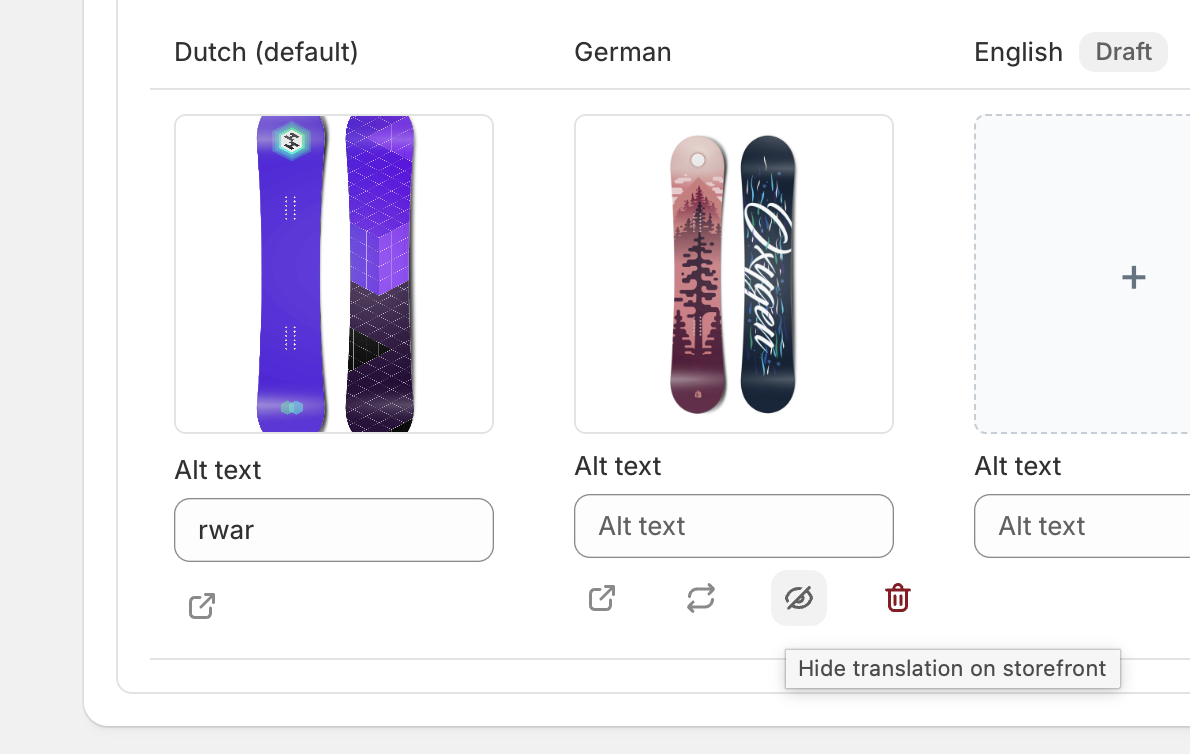
With one click, you can now hide any translated product image for a specific language. The original image stays visible for your primary locale. But for the language where it doesn’t belong? It simply disappears from the storefront.
Here’s what happens behind the scenes:
No code changes. No duplicate products. No theme editing. Just a toggle.
More often than you’d think. Here are real scenarios merchants run into:
Selling supplements or food products? Different countries require different certification labels. Your FDA approval badge means nothing to a German customer, and your CE marking is irrelevant in the US. Hide the certifications that don’t apply to each market instead of cluttering the product gallery with images customers can’t read.
A US size chart showing S/M/L/XL with inches is useless for European customers who need EU sizes in centimeters. Rather than showing both charts (which creates confusion), you can translate your size charts for each locale and hide the ones that don’t match.
Running a “Free shipping across the US” product image? That promise doesn’t apply to your international customers. Hide it for non-US locales so you don’t set false expectations.
Sometimes an image that sells well in one market falls flat in another. A beach lifestyle photo might work for Australian customers but feel irrelevant in Scandinavia during winter. The hide feature gives you control over which lifestyle shots appear where.
The feature is designed to be dead simple.
Want to bring the image back? Click the icon again. It’s a toggle, not a permanent delete.
One important rule: you can’t hide images for your primary locale. That’s a safety net to make sure you never accidentally hide all versions of a product image.
Hiding images is the complement to showing different images per language. Translation handles the “show this instead” case. Hiding handles the “don’t show this at all” case.
Together, they give you full control over your product gallery across every market:
This three-layer approach means your product infographics and media are always optimized for whoever is browsing.
Hidden images are completely excluded from the storefront page for that locale. They don’t load, they don’t appear in the DOM, and they won’t be indexed by search engines for that language version. This is actually a good thing: Google rewards pages that show relevant, focused content to users. Removing irrelevant images improves both page quality signals and load performance.
Your translated alt text on visible images continues to work normally, giving you localized SEO benefits where they matter.
The hide translation feature is available today for all Image Translate Easy users. Open any product, find a translation that doesn’t belong in a specific market, and click hide.
If you’re not using Image Translate Easy yet, install the free app to start managing your product images across languages. Translation, hiding, alt text: all from one dashboard, no code required.