
Translate all your product alt text to multiple languages with AI, or copy between same-language markets in seconds.
Alt text translation used to be a slow, manual process: open each product, switch to each language, update the alt text, repeat. For a store with 200 products and 5 languages, that’s 1,000 individual edits. New bulk alt text features in the Translate Product Images app cut that work down dramatically. You can now generate, review, and publish translated alt text across your entire catalogue in a single workflow. Here’s what changed and how to use the new tools to save hours of repetitive work.
TL;DR: Managing alt text across hundreds of products and multiple languages used to take hours. Now it takes minutes.
We’ve added two powerful features to Image Translate Easy: bulk AI translation of alt text and one-click copy between languages. Here’s how they save you serious time.
If you’ve been manually translating alt text for each product image, you know the pain. With 50 products, 5 images each, and 4 languages – that’s 1,000 translations. Our new bulk features turn this from a week-long project into a coffee-break task.
The bulk translate feature uses AI to translate your product image alt text to any language Shopify supports. Select your products, choose your target languages, and let the app do the rest.
Here’s what makes it powerful:
This is exactly what’s missing when you use Shopify’s Translate & Adapt app – it doesn’t touch your image alt text at all.
Sometimes you don’t need translation – you need duplication. The copy feature lets you instantly copy all alt text from one language to another.
This is perfect for:
Why re-translate when the text is already perfect? Just copy it over in seconds.
Both features are available from the product detail page and from your saved product selections:
The app processes everything in the background, so you can keep working. Large catalogs with hundreds of products? No problem – the job keeps running even if you close the page.
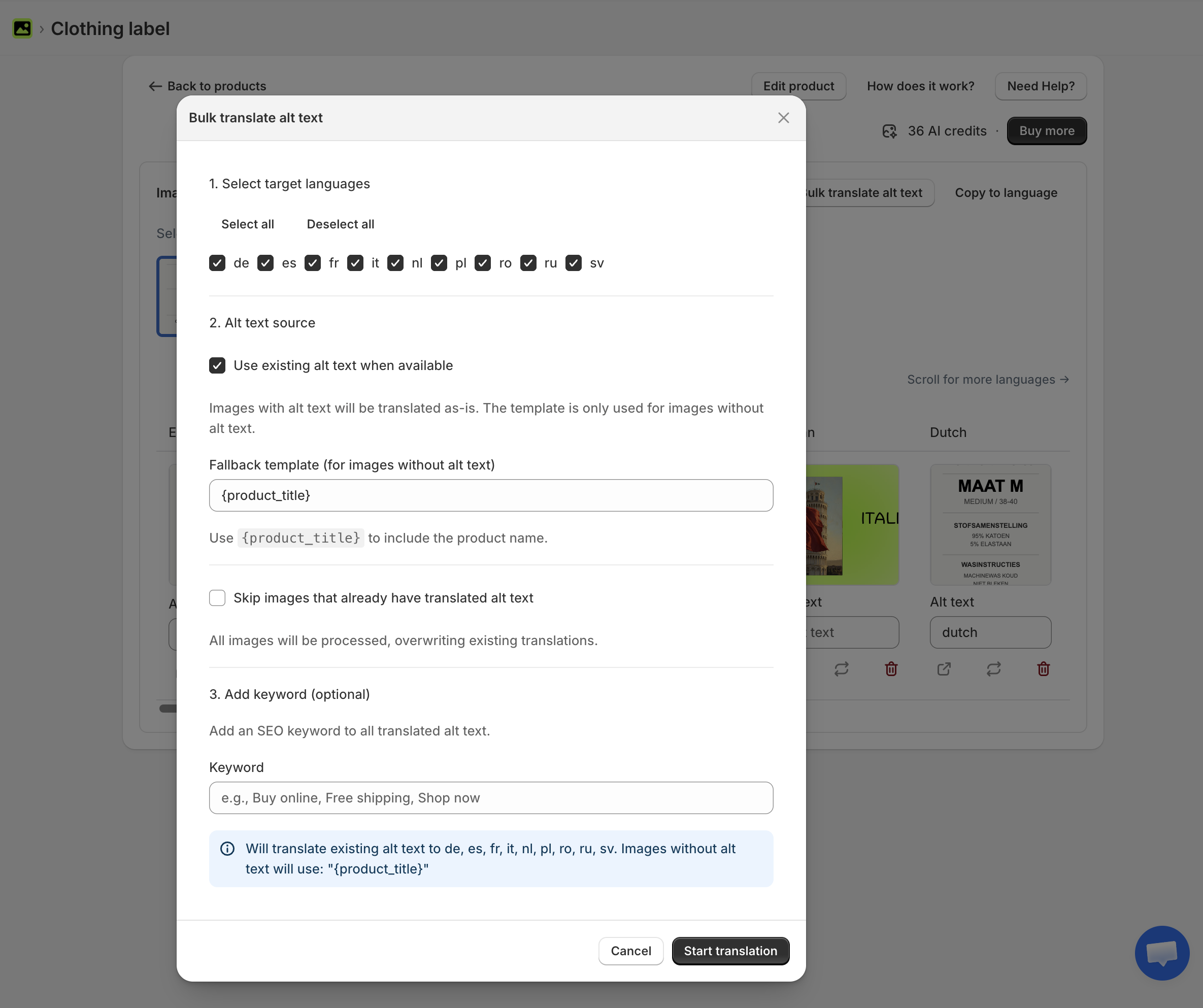
Let’s say you’re a US-based store expanding to Germany, France, Netherlands, Austria, and Switzerland. Here’s your workflow:
| Step | Action | Time |
|---|---|---|
| 1 | Bulk translate all alt text to German, French, Dutch | 2 min |
| 2 | Copy German to Austrian German (de-AT) | 30 sec |
| 3 | Copy German to Swiss German (de-CH) | 30 sec |
| 4 | Copy French to Swiss French (fr-CH) | 30 sec |
Total time: under 5 minutes for your entire catalog. Try doing that manually.
We’ve written extensively about how translated alt text improves your international SEO. The short version: Google Images drives 20-30% of e-commerce traffic, and your alt text is what makes your products discoverable.
Untranslated alt text means invisible products. A German customer searching for “blaue Laufschuhe” won’t find your “blue running shoes” – unless you’ve translated the alt text.
These bulk features make it practical to actually do this at scale. No excuses anymore.
Both features are live in Image Translate Easy. If you’re already using the app, you’ll find them in the product detail page under the “Bulk Actions” dropdown.
New to image translation? Learn how to show different product images for different languages in our complete guide.
Try Image Translate Easy on the Shopify App Store →