
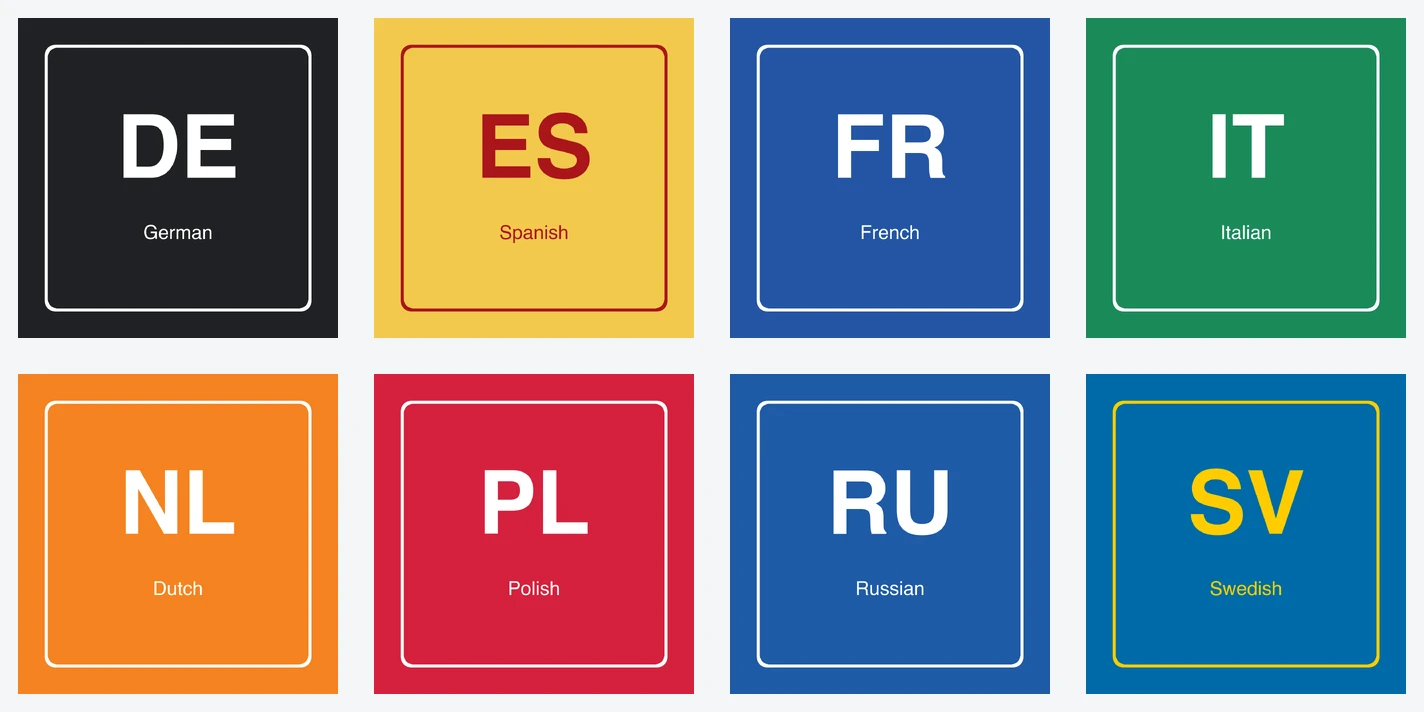
Bulk upload translated images for Shopify products with filename mapping, automatic validation, and safe language assignment across every product image.
TL;DR: You can now bulk upload translated product images for a single Shopify product in Image Translate Easy. Name each file with its product image position and language code, select the files together, review the matches, and upload them in one batch.
Uploading translated product images used to involve the same repetitive sequence: choose an original image, pick a language, select one file, upload it, and repeat. A product with four images and five languages could easily require twenty separate file selections. Our new bulk upload workflow removes most of that clicking while keeping every language file connected to the correct source image.
Watch the bulk upload workflow:
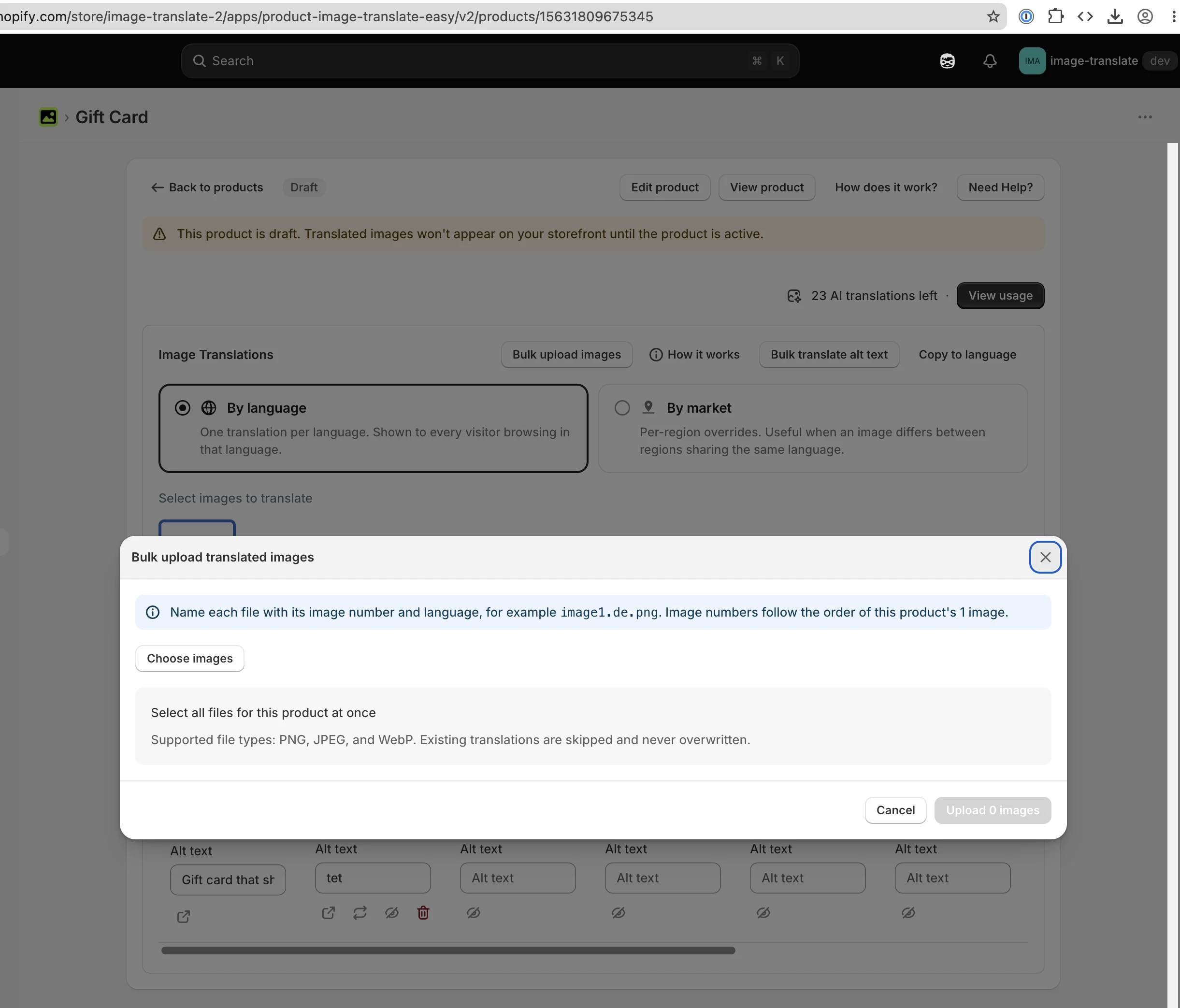
Bulk upload lets you select multiple translated image files for the product you are currently viewing. Image Translate Easy reads each filename, matches its image number to the product gallery, matches its locale code to an available language, and shows the result before anything is uploaded.
This is deliberately a single-product workflow. You already opened the correct product, so filenames do not need a SKU, variant ID, or Shopify product ID. That keeps the naming rule short and reduces the chance of assigning an image to the wrong product.
Use the following filename format:
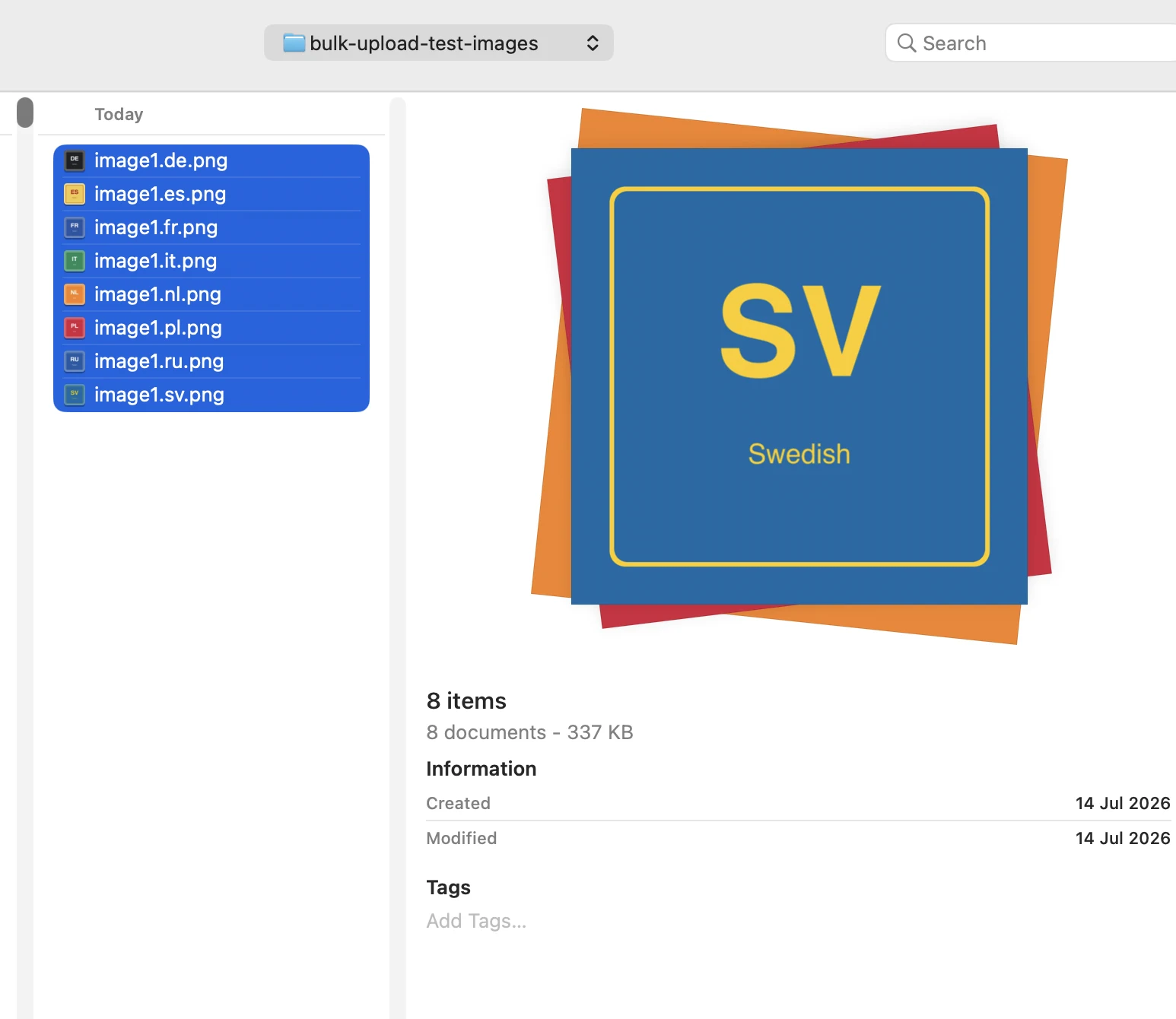
image{position}.{language}.{extension}
For example:
image1.de.png assigns the German file to the first product image.image2.fr.jpg assigns the French file to the second product image.image3.nl.webp assigns the Dutch file to the third product image.
Image positions follow the order of the images on that product, starting at 1 from left to right. Videos do not count toward the image position. Language codes must match a language available in your Shopify store, such as de, es, fr, or nl. Shopify explains how to add and assign storefront languages in its official guide to domains and languages.
The review step is important. It gives you a clear mapping before the app changes anything, much like an import preview. You can confirm that image1.de.png points to Image 1 and German, while image2.fr.png points to Image 2 and French.
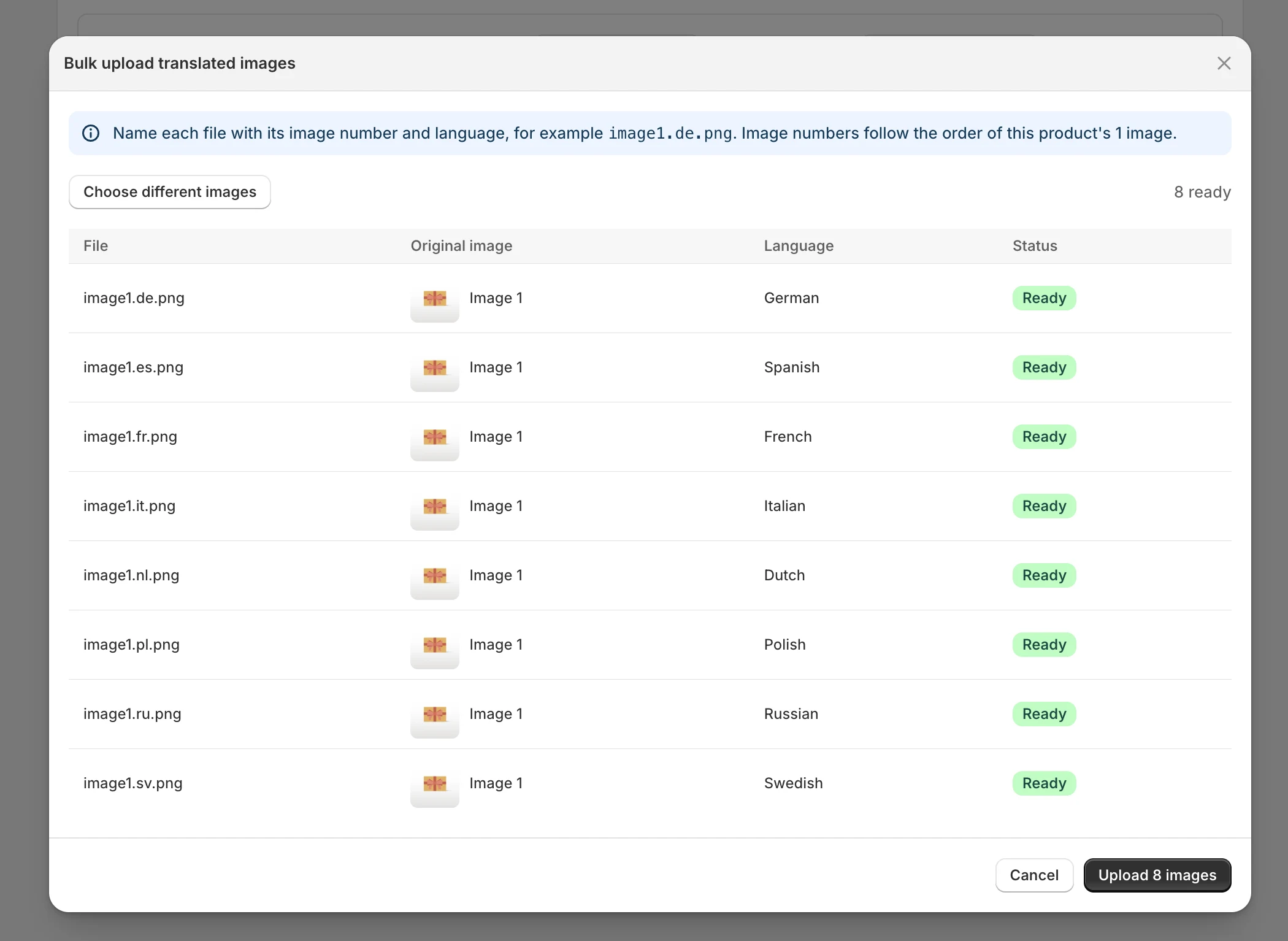
A faster workflow is only useful when it is predictable. Before upload, Image Translate Easy checks the filename, file type, image position, language, duplicate targets, and existing translations. Files that cannot be mapped safely are marked as skipped with a reason. Valid files remain available for upload.
The first version supports PNG, JPEG, and WebP files. It also follows several safety rules:
Bulk upload is most useful when a designer, agency, or internal localization team already supplies finished image variants. Common examples include translated size charts, ingredient panels, product instructions, packaging, certification graphics, and feature infographics. If you still need to create the translations, the app also supports AI image translation for Shopify.
This workflow complements, rather than replaces, the language-specific delivery in Image Translate Easy. After upload, the app continues to show the right product image based on the customer’s selected language. Read our guide to showing different product images for different languages for the complete storefront flow. You can also bulk translate image alt text to keep the metadata localized too.
No. Bulk upload is available on the single-product page, so the current product is already known. The filename only needs the image position, language code, and extension.
No. Existing translated images are skipped to protect work already saved in the app. Delete or replace that translation separately if you intentionally want to change it.
Yes. Mix filenames such as image1.de.png, image2.de.png, and image3.fr.png in the same selection. The review table maps each file independently.
Not in this version. The feature intentionally handles one product at a time. This keeps the filename format simple and lets you verify every image assignment before uploading.
The new bulk upload feature is available from the product detail page in Image Translate Easy. Prepare your language files, follow the filename convention, and select them together to replace repetitive uploads with one reviewed batch.
Install Image Translate Easy from the Shopify App Store to translate product images, localize alt text, and deliver the right visuals to every Shopify language.